Never let your sense of morals prevent you from doing what is right.

19,964 点击次数

分类: SolarWinds

  • 利用ChatGPT写一个能够自动整理Excel表格的Python

    利用ChatGPT写一个能够自动整理Excel表格的Python

    最近某客户在测试SolarWinds的SEM模块,由于SEM模块目前还在新版本的变革之中,报表功能甚至直接下架,只能依靠羸弱的Web界面去生成报表,呈现的内容无法深度加工,无法满足客户汇总关键信息的需求。身为一个编程小白,为了能够拿下这一单,只能求助ChatGPT了。

    这里我采用的是Sider,对国内用户非常友好,国际主流的AI基本都有了,只要本地网络足够稳定,就不会有任何卡顿,如果需要的同学可以点击以下链接注册,还可以额外赠送多次查询次数。

    这个AI工具超好用,每天都有免费额度,写文章、总结长视频、画图等,都几秒搞定!快去下载Sider Chrome或Edge插件,薅羊毛!
    https://sider.ai/invited?c=7e6ad196e0c3a5eea1d0bbc85e4fbd2c

    接下来进入正文。

    客户需求:

    • 提取指定列中的二级域名。
    • 呈现每一个二级域名的DNS解析次数。

    需求分析:

    根据以上需求看起来还是很简单的,但最重要的是如何去匹配抓取单元格内的二级域名,观察其特征,然后再跟ChatGPT不断沟通确定最终的方案。

    而解析次数就比较简单了,直接统计该二级域名重复的次数即可。

    另外,站在客户的角度来思考问题,肯定是不希望增加自己工作量的,所以我们要替客户尽量简化该脚本的使用步骤,毕竟买了你一个产品,我还要去复杂的运行一个脚本来实现我的需求,搁谁也是不愿意的。

    我所想到的办法是:

    • 首先要自动的处理报表文件,现状是,报表文件导出后是一个zip压缩包,解压之后才能打开csv文件进行查看。不要客户解压缩,统统交给万能的Python做。
    • 然后客户电脑上没有Python。不要客户安装Python,我来把脚本打包成一个exe。
    • 正常情况下是需要传参指定zip文件的。不要客户指定源文件和输出文件路径及文件名,而是直接双击exe,直接自动运行并生成最终客户想要的报表。
    • 最后,客户的DNS日志,涉及多台DNS,为了能够更清晰的呈现不同DNS日志的报告,让脚本抓取原日志中DNS的IP地址并写到文件名中。
    • 根据以上的思考,自认为已经做到了我所能做到的完美了,那下面就开工。

    先跟ChatGPT(下面简称人工智障)说:

    帮我用python写一个脚本,处理一个在zip压缩包中的csv文件(这个文件有点大,170000多行数据,目前是70多MB,未来会更大,所以你写出的脚本需要适应未来的变化,我不希望去分片处理,但是可以在内存中处理),我不想手动解压这个zip文件,我希望python脚本能够自己解压缩,然后处理里面的csv的文件。最终经过下面所要求的方式处理,输出一个xlsx的文件。

    具体需求如下:
    1.提取第L列第一行(ExtraneousInfo)和第AV列第一行(DestinationMachine)以下的数据,也就是从第二行开始提取。
    2.L列的数据需要从右向左检索,在遇到第二个”.”或空格时则停止,只保留第二个”.”或空格右侧的字符。
    以下为L列相关数据举例:
    “Response: “NOERROR”, Flags: “DR”, cecom.oss-cn-beijing.aliyuncs.com”
    “Response: “NOERROR”, Flags: “D”, gstatic.com”
    我想要的数据为:
    “aliyuncs.com”
    “gstatic.com”
    3.完成第二步的工作后,创建一个新的xlsx文件(具体在哪一步创建这个新的xlsx文件由您来决定),并在A列第一行写入“域名”,然后把第二步的内容从第二行开始导入其中。
    4.开始处理xlsx文件中的A列,首先去重,然后在B列第一行命名为“查询次数”,将每一个域名重复出现的次数自动填充在B列的每一个域名对应行的后面。
    5.将csv文件中的第AV列的数据传至xlsx文件的C列,C列第一行命名为“客户端IP地址”,并进行去重。
    6.无论第4、5步如何处理,都要确保在原始的csv文件中他们的ExtraneousInfo和DestinationMachine都能对应上。
    我不希望手动指定zip文件的路径,我希望运行该脚本,该脚本能够自动的读取当前目录下的zip文件并进行处理,然后自动的输出一个名为“DNS查询统计-服务器:xxxxxxx”的xlsx文件,xxxxxxx请读取csv文件E列(DetectionIP)第二行的数据进行替换。

    人工智障自动调用了GPT-4o mini来应对

    可以根据你的需求编写一个完整的Python脚本。这个脚本会自动解压当前目录下的zip文件,读取CSV文件并完成你所要求的处理。以下是满足你需求的代码示例:

    import pandas as pd  
    import zipfile  
    import os  
    import re  
    
    # 获取当前目录下的zip文件路径  
    current_dir = os.getcwd()  
    zip_files = [f for f in os.listdir(current_dir) if f.endswith('.zip')]  
    
    # 检查是否存在zip文件  
    if not zip_files:  
        raise FileNotFoundError("当前目录下没有找到zip文件")  
    elif len(zip_files) > 1:  
        raise RuntimeError("当前目录下存在多个zip文件,请确保只有一个zip文件")  
    
    zip_file_path = os.path.join(current_dir, zip_files[0])  
    
    # 解压缩zip文件并读取CSV  
    with zipfile.ZipFile(zip_file_path, 'r') as zip_ref:  
        # 获取zip中的文件名  
        file_names = zip_ref.namelist()  
        csv_file_name = file_names[0]  
    
        # 读取CSV文件,设置low_memory=False  
        with zip_ref.open(csv_file_name) as csv_file:  
            df = pd.read_csv(csv_file, low_memory=False)  
    
    # 获取E列第二行的数据用于生成文件名  
    server_ip = df.iloc[1, df.columns.get_loc('DetectionIP')]  
    
    # 需求1: 提取L列和AV列的数据  
    extraneous_info = df.iloc[1:, df.columns.get_loc('ExtraneousInfo')]  
    destination_machine = df.iloc[1:, df.columns.get_loc('DestinationMachine')]  
    
    # 需求2: 处理L列数据  
    def extract_domain(info):  
        # 从右向左检索第二个"."或者空格  
        match = re.findall(r'(\.| )[^\. ]+$', info)  
        if len(match) > 1:  
            return info.split(".")[-2] + '.' + info.split(".")[-1]  
        return info  
    
    # 提取域名  
    domains = extraneous_info.apply(extract_domain)  
    
    # 创建DataFrame以存储域名  
    domain_df = pd.DataFrame({'域名': domains})  
    
    # 需求4: 去重并统计查询次数  
    domain_counts = domain_df['域名'].value_counts().reset_index()  
    domain_counts.columns = ['域名', '查询次数']  
    
    # 需求5: 处理DestinationMachine列并去重  
    unique_ips = destination_machine.drop_duplicates().reset_index(drop=True)  
    unique_ips.name = '客户端IP地址'  
    
    # 将数据合并到最终的DataFrame  
    final_df = pd.merge(domain_counts, unique_ips.to_frame(), left_index=True, right_index=True, how='left')  
    
    # 生成输出文件名  
    output_xlsx_path = os.path.join(current_dir, f'DNS查询统计-服务器:{server_ip}.xlsx')  
    
    # 写入输出xlsx文件  
    with pd.ExcelWriter(output_xlsx_path) as writer:  
        final_df.to_excel(writer, index=False)  
    
    print(f'处理完成,结果保存在 {output_xlsx_path}')

    代码说明:

    1. 自动读取zip文件:脚本会查找当前目录下的所有zip文件,并选择第一个进行处理。
    2. 解压CSV文件:通过zipfile库自动解压并读取CSV文件。
    3. 数据处理
      • ExtraneousInfo列提取信息并通过正则表达式来获取域名。
      • 统计重复的域名并生成一个新的DataFrame。
      • DestinationMachine的唯一IP地址添加到输出中。
    4. 创建输出文件:生成的Excel文件命名为DNS查询统计-服务器:xxxxxxx.xlsx,其中xxxxxxxDetectionIP字段的第二行数据。
    5. 保存结果:使用pandasExcelWriter将结果写入新创建的Excel文件中。

    注意事项:

    • 确保你的环境中已安装必要的库:pandas 和 openpyxl。你可以通过以下命令安装:pip install pandas openpyxl

    希望这个脚本能够满足你的需求!如果有任何问题或者需要进一步调整,请告诉我。

    看起来还算可以,至少脚本主体出来了,上VSCode开始调试脚本,调试时发现二级域名提取的不对,点一点人工智障:

    注意我关于L列的要求,请继续修改

    以下为L列相关数据举例: “Response: “NOERROR”, Flags: “DR”, cecom.oss-cn-beijing.aliyuncs.com” “Response: “NOERROR”, Flags: “D”, gstatic.com” 我想要的数据为: “aliyuncs.com” “gstatic.com”

    回复还挺快,立马做出了修改:

    根据你的要求,我将修改代码以提取L列中的域名,确保只获取最后一个点(.)后面的部分。以下是更新后的代码示例:

    import pandas as pd  
    import zipfile  
    import os  
    import re  
    
    # 获取当前目录下的zip文件路径  
    current_dir = os.getcwd()  
    zip_files = [f for f in os.listdir(current_dir) if f.endswith('.zip')]  
    
    # 检查是否存在zip文件  
    if not zip_files:  
        raise FileNotFoundError("当前目录下没有找到zip文件")  
    elif len(zip_files) > 1:  
        raise RuntimeError("当前目录下存在多个zip文件,请确保只有一个zip文件")  
    
    zip_file_path = os.path.join(current_dir, zip_files[0])  
    
    # 解压缩zip文件并读取CSV  
    with zipfile.ZipFile(zip_file_path, 'r') as zip_ref:  
        # 获取zip中的文件名  
        file_names = zip_ref.namelist()  
        csv_file_name = file_names[0]  
    
        # 读取CSV文件,设置low_memory=False  
        with zip_ref.open(csv_file_name) as csv_file:  
            df = pd.read_csv(csv_file, low_memory=False)  
    
    # 获取E列第二行的数据用于生成文件名  
    server_ip = df.iloc[1, df.columns.get_loc('DetectionIP')]  
    
    # 需求1: 提取L列和AV列的数据  
    extraneous_info = df.iloc[1:, df.columns.get_loc('ExtraneousInfo')]  
    destination_machine = df.iloc[1:, df.columns.get_loc('DestinationMachine')]  
    
    # 需求2: 处理L列数据,提取最后一个点后的域名  
    def extract_domain(info):  
        # 使用正则表达式提取最后一个点后的部分  
        match = re.search(r'([^.]+\.[^.]+)$', info)  
        return match.group(0) if match else None  
    
    # 提取域名  
    domains = extraneous_info.apply(extract_domain)  
    
    # 创建DataFrame以存储域名  
    domain_df = pd.DataFrame({'域名': domains})  
    
    # 需求4: 去重并统计查询次数  
    domain_counts = domain_df['域名'].value_counts().reset_index()  
    domain_counts.columns = ['域名', '查询次数']  
    
    # 需求5: 处理DestinationMachine列并去重  
    unique_ips = destination_machine.drop_duplicates().reset_index(drop=True)  
    unique_ips.name = '客户端IP地址'  
    
    # 将数据合并到最终的DataFrame  
    final_df = pd.merge(domain_counts, unique_ips.to_frame(), left_index=True, right_index=True, how='left')  
    
    # 生成输出文件名  
    output_xlsx_path = os.path.join(current_dir, f'DNS查询统计-服务器:{server_ip}.xlsx')  
    
    # 写入输出xlsx文件  
    with pd.ExcelWriter(output_xlsx_path) as writer:  
        final_df.to_excel(writer, index=False)  
    
    print(f'处理完成,结果保存在 {output_xlsx_path}')

    代码修改说明:

    1. 提取域名:在extract_domain函数中,使用正则表达式r'([^.]+\.[^.]+)$'来匹配最后一个点后的部分,确保只提取域名的后缀部分。
    2. 输出格式:最终的DataFrame将包含“域名”、“查询次数”和“客户端IP地址”三列,符合你的要求。

    注意事项:

    • 确保你的环境中已安装必要的库:pandas 和 openpyxl

    如果有其他需求或进一步的修改,请告诉我!

    还是不行,看来得跟人工智障好好唠唠了。

    使用你的脚本,对于以下L列单元格的文本,处理的结果是什么? Response: “NOERROR”, Flags: “DR”, app-analytics-services.com

    人工智障挺着胸脯说道:

    根据你提供的L列单元格文本“Response: “NOERROR”, Flags: “DR”, app-analytics-services.com”,使用我之前提供的脚本处理后,提取的结果将是:

    域名analytics-services.com

    处理过程:

    1. 正则表达式r'([^.]+\.[^.]+)$'会匹配最后一个点后的部分。
    2. 在这个例子中,app-analytics-services.com的最后一个点后是analytics-services.com

    因此,最终的结果会在输出的Excel文件中显示为:

    域名查询次数客户端IP地址
    analytics-services.com179267XXX.XXX.XXX.XXX

    如果你有其他问题或需要进一步的帮助,请告诉我!

    还挺硬气,继续质问它:

    那为何我在执行的时候不是这样的呢?而是没有任何处理的输出到了xlsx文件中

    人工智障不紧不慢的补充道:

    如果在执行脚本时没有任何处理的输出到xlsx文件,可能有几个原因。以下是几种可能性以及相应的解决方法:

    1. 数据未正确读取
      • 确保zip文件中的CSV文件格式正常,并且L列(ExtraneousInfo)和其他列存在。
      • 检查是否存在任何空值或缺失值,可能导致后续处理结果为空。
    2. 正则表达式未匹配
      • 如果文本格式不完全符合预期(例如,前面有多余的空格或换行),正则表达式可能无法正确匹配。
      • 可以通过在extract_domain函数中输出调试信息,查看更多的文本数据,并检查正则表达式是否能正常匹配。
    3. 文件路径和权限问题
      • 确保脚本的工作目录正确,并且可写权限正常。
      • 检查输出路径是否有权限写入文件。
    4. DataFrame为空
      • 在执行到生成输出的步骤时,可以在输出前打印调试信息,例如print(final_df),确认final_df是否包含数据。

    调试步骤:

    • 加入打印调试信息
      在关键步骤前加上打印信息,例如:print("读取到的数据:") print(df.head()) print("提取的域名:") print(domains.head()) print("最终数据:") print(final_df)
    • 检查列名
      确保CSV文件中的列名确实为DetectionIPExtraneousInfoDestinationMachine,避免大小写或额外空格导致的列名不匹配。
    • 单独测试提取函数
      可以单独测试extract_domain函数,确认它能处理你提供的样本数据。

    如果你仍然遇到问题,分享具体的错误信息或输出,我将更能帮助你找到解决方案!

    单独打磨这个正则表达式函数就按下不表了,来来回回几个回合总算找到了病根,并且完美解决。

    这次正确了,那请根据这次修改,重新写之前的脚本吧

    然后,人工智障开始犯智障了。。。。

    当然可以!以下是完整的脚本,包含更新后的extract_domain函数以及测试样本数据部分:

    import re  
    
    def extract_domain(text):  
        # 使用正则表达式提取域名  
        match = re.search(r'([a-zA-Z0-9\-]+\.[a-zA-Z]{2,})', text)  
        if match:  
            return match.group(0)  
        return None  
    
    # 测试样本数据  
    test_cases = [  
        'Response: "NOERROR", Flags: "DR", app-analytics-services.com',  
        'Response: "ERROR", Flags: "DR", example.co.uk',  
        'Some other text, no domain here',  
        'Response: "NOERROR", Flags: "DR", another-example.org'  
    ]  
    
    # 运行测试  
    for case in test_cases:  
        result = extract_domain(case)  
        print(f'输入: "{case}" => 提取的域名: {result}')

    说明:

    1. extract_domain 函数利用正则表达式提取域名。
    2. test_cases 列表中包含多个测试输入,用于验证函数的正确性。
    3. 最后,通过循环遍历测试样本,输出提取的结果。

    你可以将这个脚本复制到你自己的Python环境中运行,应该会得到正确的域名提取结果。如果你有其他需求或问题,请告诉我!

    把人工智障带回主线。

    我的意思是把 def extract_domain(text): # 使用正则表达式提取域名 match = re.search(r'([a-zA-Z0-9\-]+\.[a-zA-Z]{2,})’, text) if match: return match.group(0) return None 这部分代码加入到我引用文本中提及的脚本中去,因为我不懂python,我不会修改。

    根据你的要求,我将修改代码以提取L列中的域名,确保只获取最后一个点(`.`)后面的部分。以下是更新后的代码示例: “`python import pandas as pd import zipfile import os import re # 获取当前目录下的zip文件路径 current_dir = os.getcwd() zip_files = [f for f in os.listdir(current_dir) if f.endswith(‘.zip’)] # 检查是否存在zip文件 if not zip_files: raise FileNotFoundError(“当前目录下没有找到zip文件”) elif len(zip_files) > 1: raise RuntimeError(“当前目录下存在多个zip文件,请确保只有一个zip文件”) zip_file_path = os.path.join(current_dir, zip_files[0]) # 解压缩zip文件并读取CSV with zipfile.ZipFile(zip_file_path, ‘r’) as zip_ref: # 获取zip中的文件名 file_names = zip_ref.namelist() csv_file_name = file_names[0] # 读取CSV文件,设置low_memory=False with zip_ref.open(csv_file_name) as csv_file: df = pd.read_csv(csv_file, low_memory=False) # 获取E列第二行的数据用于生成文件名 server_ip = df.iloc[1, df.columns.get_loc(‘DetectionIP’)] # 需求1: 提取L列和AV列的数据 extraneous_info = df.iloc[1:, df.columns.get_loc(‘ExtraneousInfo’)] destination_machine = df.iloc[1:, df.columns.get_loc(‘DestinationMachine’)] # 需求2: 处理L列数据,提取最后一个点后的域名 def extract_domain(info): # 使用正则表达式提取最后一个点后的部分 match = re.search(r'([^.]+\.[^.]+)$’, info) return match.group(0) if match else None # 提取域名 domains = extraneous_info.apply(extract_domain) # 创建DataFrame以存储域名 domain_df = pd.DataFrame({‘域名’: domains}) # 需求4: 去重并统计查询次数 domain_counts = domain_df[‘域名’].value_counts().reset_index() domain_counts.columns = [‘域名’, ‘查询次数’] # 需求5: 处理DestinationMachine列并去重 unique_ips = destination_machine.drop_duplicates().reset_index(drop=True) unique_ips.name = ‘客户端IP地址’ # 将数据合并到最终的DataFrame final_df = pd.merge(domain_counts, unique_ips.to_frame(), left_index=True, right_index=True, how=’left’) # 生成输出文件名 output_xlsx_path = os.path.join(current_dir, f’DNS查询统计-服务器:{server_ip}.xlsx’) # 写入输出xlsx文件 with pd.ExcelWriter(output_xlsx_path) as writer: final_df.to_excel(writer, index=False) print(f’处理完成,结果保存在 {output_xlsx_path}’) “` ### 代码修改说明: 1. **提取域名**:在`extract_domain`函数中,使用正则表达式`r'([^.]+\.[^.]+)$’`来匹配最后一个点后的部分,确保只提取域名的后缀部分。 2. **输出格式**:最终的DataFrame将包含“域名”、“查询次数”和“客户端IP地址”三列,符合你的要求。 ### 注意事项: – 确保你的环境中已安装必要的库:`pandas` 和 `openpyxl`。 如果有其他需求或进一步的修改,请告诉我!

    人工智障老老实实又重新写了一遍:

    好的!我已经将你提供的代码与之前的 extract_domain 函数结合在一起,确保提取 L 列中的域名。以下是更新后的完整脚本:

    import pandas as pd  
    import zipfile  
    import os  
    import re  
    
    # 获取当前目录下的zip文件路径  
    current_dir = os.getcwd()  
    zip_files = [f for f in os.listdir(current_dir) if f.endswith('.zip')]  
    
    # 检查是否存在zip文件  
    if not zip_files:  
        raise FileNotFoundError("当前目录下没有找到zip文件")  
    elif len(zip_files) > 1:  
        raise RuntimeError("当前目录下存在多个zip文件,请确保只有一个zip文件")  
    
    zip_file_path = os.path.join(current_dir, zip_files[0])  
    
    # 解压缩zip文件并读取CSV  
    with zipfile.ZipFile(zip_file_path, 'r') as zip_ref:  
        # 获取zip中的文件名  
        file_names = zip_ref.namelist()  
        csv_file_name = file_names[0]  
    
        # 读取CSV文件,设置low_memory=False  
        with zip_ref.open(csv_file_name) as csv_file:  
            df = pd.read_csv(csv_file, low_memory=False)  
    
    # 获取E列第二行的数据用于生成文件名  
    server_ip = df.iloc[1, df.columns.get_loc('DetectionIP')]  
    
    # 需求1: 提取L列和AV列的数据  
    extraneous_info = df.iloc[1:, df.columns.get_loc('ExtraneousInfo')]  
    destination_machine = df.iloc[1:, df.columns.get_loc('DestinationMachine')]  
    
    # 需求2: 处理L列数据,提取最后一个点后的域名  
    def extract_domain(info):  
        # 使用正则表达式提取域名  
        match = re.search(r'([a-zA-Z0-9\-]+\.[a-zA-Z]{2,})', info)  
        return match.group(0) if match else None  
    
    # 提取域名  
    domains = extraneous_info.apply(extract_domain)  
    
    # 创建DataFrame以存储域名  
    domain_df = pd.DataFrame({'域名': domains})  
    
    # 需求4: 去重并统计查询次数  
    domain_counts = domain_df['域名'].value_counts().reset_index()  
    domain_counts.columns = ['域名', '查询次数']  
    
    # 需求5: 处理DestinationMachine列并去重  
    unique_ips = destination_machine.drop_duplicates().reset_index(drop=True)  
    unique_ips.name = '客户端IP地址'  
    
    # 将数据合并到最终的DataFrame  
    final_df = pd.merge(domain_counts, unique_ips.to_frame(), left_index=True, right_index=True, how='left')  
    
    # 生成输出文件名  
    output_xlsx_path = os.path.join(current_dir, f'DNS查询统计-服务器:{server_ip}.xlsx')  
    
    # 写入输出xlsx文件  
    with pd.ExcelWriter(output_xlsx_path) as writer:  
        final_df.to_excel(writer, index=False)  
    
    print(f'处理完成,结果保存在 {output_xlsx_path}')

    代码说明:

    1. extract_domain 函数:使用正则表达式提取域名,确保只获取有效的域名格式。
    2. 数据处理:从 CSV 文件中提取数据并处理 L 列,提取域名。
    3. 输出结果:将提取的域名和相关信息写入 Excel 文件。

    注意事项:

    • 确保在运行此脚本之前,已安装 pandas 和 openpyxl 库。
    • 该脚本会在当前工作目录下查找 ZIP 文件并处理其中的 CSV 文件。

    如果你有其他问题或需要进一步的修改,请告诉我!

    接下来还是有问题,来来回回又是几个回合,由于IP地址客户端的问题实在难以解决,客户也不是很关心该列,所以干脆让人工智障去掉算求子。最终,人工智障总算给我了最终的版本,完美,拿代码走人:

    以下是修改后的代码,去掉了客户端IP列的处理和输出:

    import pandas as pd  
    import zipfile  
    import os  
    import re  
    
    # 获取当前目录下的zip文件路径  
    current_dir = os.getcwd()  
    zip_files = [f for f in os.listdir(current_dir) if f.endswith('.zip')]  
    
    # 检查是否存在zip文件  
    if not zip_files:  
        raise FileNotFoundError("当前目录下没有找到zip文件")  
    elif len(zip_files) > 1:  
        raise RuntimeError("当前目录下存在多个zip文件,请确保只有一个zip文件")  
    
    zip_file_path = os.path.join(current_dir, zip_files[0])  
    
    # 解压缩zip文件并读取CSV  
    with zipfile.ZipFile(zip_file_path, 'r') as zip_ref:  
        # 获取zip中的文件名  
        file_names = zip_ref.namelist()  
        csv_file_name = file_names[0]  
    
        # 读取CSV文件,设置low_memory=False  
        with zip_ref.open(csv_file_name) as csv_file:  
            df = pd.read_csv(csv_file, low_memory=False)  
    
    # 获取E列第二行的数据用于生成文件名  
    server_ip = df.iloc[1, df.columns.get_loc('DetectionIP')]  
    
    # 需求1: 提取L列的数据  
    extraneous_info = df.iloc[1:, df.columns.get_loc('ExtraneousInfo')]  
    
    # 需求2: 处理L列数据,提取二级域名  
    def extract_second_level_domain(info):  
        # 使用正则表达式从 DNS 响应日志中提取域名部分  
        match = re.search(r'(?<=,\s)[\w.-]+\.[\w.-]+', info)  
        if match:  
            domain_parts = match.group(0).rsplit('.', 2)  # 分割域名成部分  
            if len(domain_parts) >= 2:  
                return f"{domain_parts[-2]}.{domain_parts[-1]}"  # 返回二级域名  
        return None  
    
    # 提取二级域名  
    second_level_domains = extraneous_info.apply(extract_second_level_domain)  
    
    # 创建DataFrame以存储二级域名  
    domain_df = pd.DataFrame({'二级域名': second_level_domains})  
    
    # 需求4: 去重并统计查询次数  
    domain_counts = domain_df['二级域名'].value_counts().reset_index()  
    domain_counts.columns = ['二级域名', '查询次数']  
    
    # 生成输出文件名  
    output_xlsx_path = os.path.join(current_dir, f'DNS查询统计-服务器:{server_ip}.xlsx')  
    
    # 写入输出xlsx文件  
    with pd.ExcelWriter(output_xlsx_path) as writer:  
        domain_counts.to_excel(writer, index=False)  
    
    print(f'处理完成,结果保存在 {output_xlsx_path}')

    修改说明:

    1. 去掉客户端IP的处理:删除了与客户端IP相关的所有代码,包括提取、去重和合并步骤。
    2. 简化最终输出:只输出二级域名和查询次数的统计结果。

    运行这段代码将只生成包含二级域名和查询次数的Excel文件。如果还有其他需求,请告诉我!

    Python脚本转exe

    好了,脚本在手,调试一切OK,接下来就进行封装转exe了,这个就极为简单了,要确保开发环境安装pyinstaller,然后只需要一条命令就可以搞定,另外我也贴心的给exe文件加了一个ico,美美哒:

    pyinstaller –onefile –nowindowed –icon=”E:\Python\Lib\site-packages_pyinstaller_hooks_contrib\terminal.ico” report_post-processing.py

    至此,完成。

    总结

    跟人工智障的沟通,一定要事无巨细,当然有所遗漏也可以在后面补充,但如果token数量(沟通次数)非常紧张的话,那就必须要仔细打磨你想问的问题了。

    如果人工智障跑偏了实在带不回来了,也没关系,重新建立一个新的会话,重新唠即可。

    最后,有人工智障,真好。

  • Serv-U Distributed Architecture Guide

    Serv-U Distributed Architecture Guide

    Horizontal Scaling and Application Tiering for High Availability, Security, and Performance

    Refer: https://documentation.solarwinds.com/en/success_center/servu/content/servu_documentation.htm

    Introduction

    Serv-U is a high-performance secure file transfer server for Windows and Linux. It supports FTP, FTPS (SSL/TLS), SFTP (SSH), HTTP, and HTTPS connections, and includes optimized interfaces for web browsers and mobile devices (e.g., iPad, iPhone, BlackBerry, Android, Microsoft Windows Mobile, and Kindle Fire).

    To support stringent redundancy, security, and performance requirements Serv-U supports both multi-tier and high availability architectures. This document describes Serv-U’s support for these distributed architectures and their relative advantages and disadvantages.

    “No Data in DMZ” for Managed File Transfer

    A multi-tier Serv-U / Serv-U Gateway deployment allows you to meet a common managed file transfer requirement: “never store data at rest in a DMZ.”

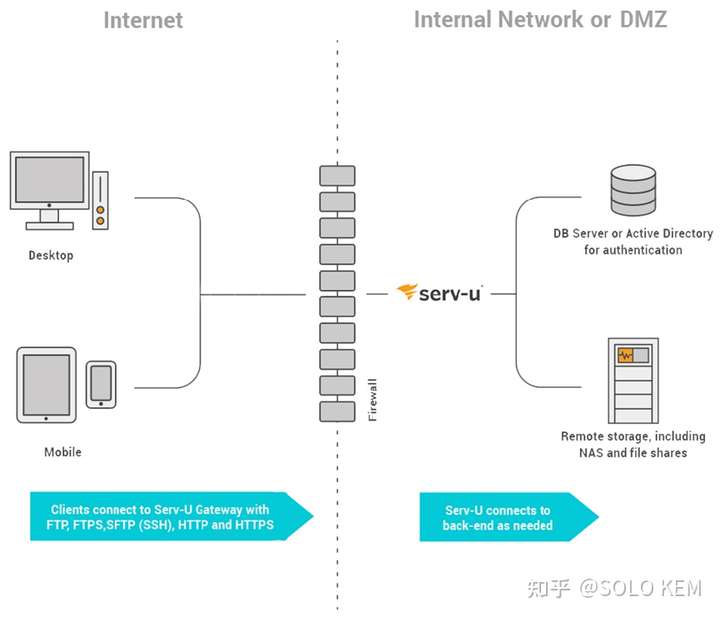
    Serv-U Gateway safely proxies incoming connections from the Internet to your Serv-U server without opening any connections from the Internet or your DMZ segment into your trusted network.

    The File Sharing module of Serv-U currently does not support High Availability environments. High Availability is designed for file transfers only.

    High Availability through Horizontal Scaling

    Both the core Serv-U server and Serv-U Gateway can be deployed in “N+1” configurations to achieve high availability through horizontal scaling. This allows you to avoid single points of failure or scale up to meet your needs.

    Hardware requirements

    This section contains the minimum hardware requirements that need to be met, so that a given number of simultaneous transfers can be handled through the different protocols.

    The provided data refer to single-instance Serv-U installations. For example, a single-instance installation can handle 500 simultaneous transfers through FTP with the given hardware. If you expect to have 1000 simultaneous transfers, it is recommended that you install 2 Serv-U instances, each of them meeting the requirements needed to handle 500 simultaneous transfers.

    If the load is higher than expected for a given configuration, Serv-U remains functional, but the transfer rates will be diminished, and the user interface becomes less responsive.

    NUMBER OF SIMULTANEOUS TRANSFERS PER PROTOCOLFTP (UNCOMPRESSED **), HTTPENCRYPTED (HTTPS, SFTP)  
    10512 MB RAM 7200 RPM HDD 2 core CPU *1 GB RAM 7200 RPM HDD 4 core CPU*
    251 GB RAM 7200 RPM HDD 2 core CPU *2 GB RAM 7200 RPM HDD 4 core CPU*
    502 GB RAM 10000 RPM HDD 4 core CPU*4 GB RAM 10000 RPM HDD 4+ core CPU*
    1004 GB RAM 2x 10000 RPM HDD (RAID) 4 core CPU*Multiple instances of Serv-U (2x)
    2004+ GB RAM SSD HDD or 2x 10000 RPM HDD 4+ core CPU*Multiple instances of Serv-U (4x)
    5008+ GB RAM SSD HDD or 2x 15000 HDD (RAID) 8+ core CPU*Please contact SolarWinds to define the requirements for your environment.
    1000Multiple instances of Serv-U (2x)Please contact SolarWinds to define the requirements for your environment.

    * Using CPU with higher performance per core has significantly better impact on performance than increasing the number of CPU cores, therefore it is recommended that you use CPUs with higher clock rates.

    ** These recommendation are valid for FTP transfers with data compression disabled. If data compression is enabled, CPU requirements are notably higher. For best results, it is recommended to use CPU with as high performance per core as possible.

    Scalability tips and best practices

    • One Serv-U Gateway should be capable of gracefully handling at least 2 Serv-U server instances.
    • Opening a list of users in the Management Console is a highly CPU intensive operation. For better performance, it is recommended that you divide users into collections, and avoid managing users’ lists during heavy loads.
    • It is also recommended that during heavy loads, you avoid opening and navigating in the Management Console, especially on pages that display logs which are refreshed at short intervals.
    • For best performance, use a HDD or SSD with high IOPS rate. A high IOPS rate increases the performance in the case of 50+ simultaneous transfers.
    • The recommended network speed is 1000+ Mbit/s for all types of file transfers.

    Basic deployment

    When Serv-U is deployed as a standalone server it is typically protected from the Internet by a single firewall. It may be connected to remote storage or remote authentication sources. All editions of Serv-U may be deployed in this architecture, but only Serv-U MFT Server may leverage external authentication sources.

    Firewall Configuration

    The primary firewall supports FTP, FTPS (SSL/TLS), SFTP (SSH), HTTP, and/or HTTPS inbound connections from the Internet into Serv-U. This firewall may also be configured to allow outbound connections for support FTP/S active mode data connections, or may be “FTP aware” enough to open FTP data channels dynamically.

    Variations

    • If Serv-U accesses remote storage (for example, NAS or file shares), then Serv-U must be able to make a CIFS (Windows networking) connection to those resources.
    • If Serv-U accesses an ODBC-compliant database for remote authentication, then Serv-U must be able to make a database-appropriate connection to that database. For example, SQL Server connections are often made over TCP port 1433.
    • If Serv-U accesses Active Directory (“AD”) for remote authentication, then your Serv-U server must be part of the AD domain and must be on the same network segment.

    Advantages

    • Easiest configuration to set up. (This configuration is recommended during functional evaluation of Serv-U software.)

    Disadvantages

    • No active redundancy means the Serv-U server is a single point of failure.
    • Direct connections from Serv-U to internal storage, internal databases, or Active Directory domain controllers are not permitted by many security policies.

    Basic multi-tier (MFT) deployment

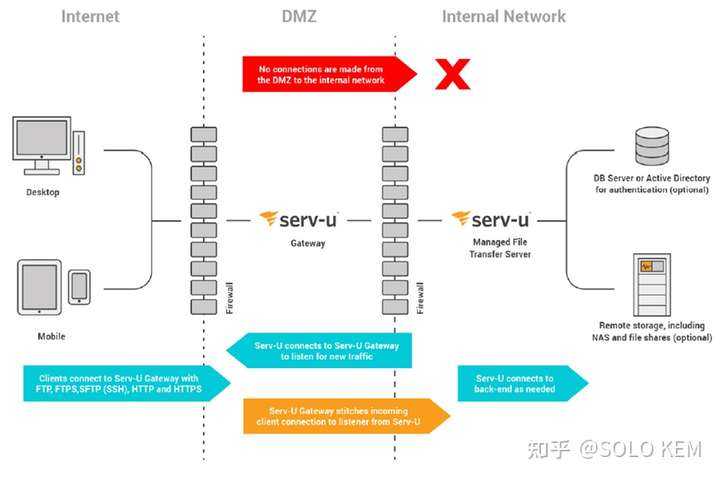
    The Serv-U Gateway allows you to deploy Serv-U in a multi-tier architecture that meets or exceeds most managed file transfer (“MFT”) security requirements. This architecture allows you to:

    • Terminate all incoming transfer connections on a hardened server located in your DMZ segment
    • Ensure no data is ever stored in your DMZ segment
    • Avoid opening any inbound connections from your DMZ segment to the internal network

    Serv-U FTP Server* and Serv-U MFT Server may be deployed in this architecture, but Serv-U MFT Server should be used if you support SFTP (SSH) or HTTPS transfers or plan to leverage external authentication sources.

    * Serv-U FTP Server does not support SFTP or HTTPS.

    Firewall Configuration

    The firewall between the Internet and the DMZ segment supports FTP, FTPS (SSL/TLS), SFTP (SSH), HTTP, and/or HTTPS inbound connections from the Internet into Serv-U. This firewall may also be configured to allow outbound connections to support FTP/S active mode data connections, or may be “FTP aware” enough to open FTP data channels dynamically.

    The firewall between the DMZ segment and the internal network only needs to allow outbound connections from Serv-U to Serv-U Gateway over TCP port 1180.

    Variations

    • If Serv-U accesses remote storage (for example, NAS or file shares), then Serv-U must be able to make a CIFS (Windows networking) connection to those resources.
    • If Serv-U accesses an ODBC-compliant database for remote authentication, then Serv-U must be able to make a database-appropriate connection to that database. For example, SQL Server connections are often made over TCP port 1433.
    • If Serv-U accesses Active Directory (“AD”) for remote authentication, then your Serv-U server must be part of the AD domain and must be on the same network segment.
    • The two firewalls represented in the diagram are really often “two legs” of a single firewall controlling access between multiple segments.
    • Serv-U Gateway and Serv-U may be deployed on different operating systems, for example, your Internet-facing Serv-U Gateway can be deployed on Linux even if you have deployed your Serv-U server on Windows.

    Advantages

    • Still easy to set up. (Install Serv-U Gateway, define Serv-U Gateway, define Serv-U listeners, test, and go.)
    • Fully satisfies the MFT requirement that no data at rest exists in the DMZ.
    • Satisfies most security policy requirements by ensuring that direct connections to internal storage, internal databases, or Active Directory domain controllers are only made between computers on your trusted internal network.
    • No CIFS, AD, or DB connections are ever made across a firewall.

    Disadvantages

    No active redundancy means the Serv-U server and Serv-U Gateway are single points of failure.

    Basic high availability (N+1) deployment

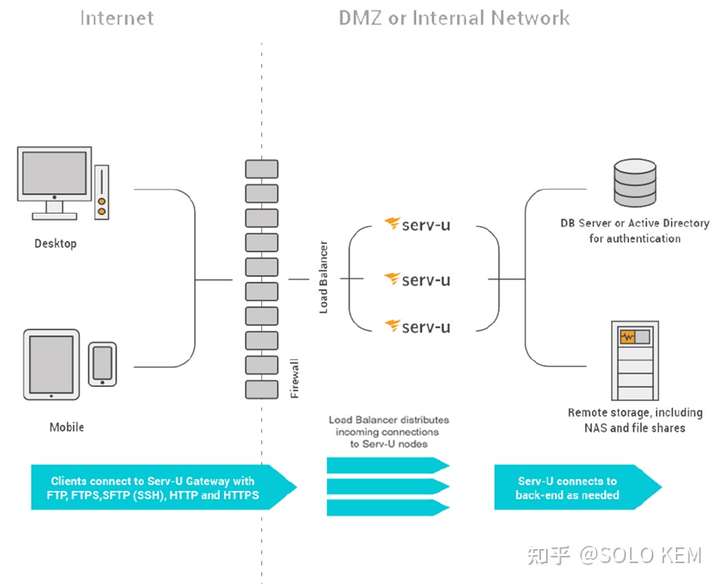
    Serv-U can be deployed as a web farm of application servers to provide highly available (“HA”) services through horizontal scaling (a.k.a. “N+1”).

    Serv-U MFT Server is the only Serv-U edition that support HA deployments because Serv-U’s HA configuration requires the use of external authentication sources. Up to five Serv-U servers are currently allowed in this configuration.

    Firewall Configuration

    The primary firewall supports FTP, FTPS (SSL/TLS), SFTP (SSH), HTTP, and/or HTTPS inbound connections from the Internet into Serv-U. This firewall may also be configured to allow outbound connections to support FTP/S active mode data connections, or may be “FTP aware” enough to open FTP data channels dynamically.

    Load Balancer

    A network load balancer must be used to distribute incoming connections to each Serv-U server.

    Load balancers should be configured to preserve original IP addresses if you want to use Serv-U’s IP lockout protection. Load balancers should also use “sticky sessions” that lock all incoming connections from a particular IP address to a specific Serv-U server to allow FTP and FTPS connections to work properly.

    Remote Storage

    All user home folders, virtual folders and other Serv-U folders must be configured to use remote storage (for example, NAS or file shares) rather than local hard drives. Serv-U must be able to make a CIFS (Windows networking) connection to those resources.

    Remote Authentication

    • All Serv-U domains must use remote authentication provided by an ODBC-compliant database or Microsoft Active Directory (AD).
    • If Serv-U accesses an ODBC-compliant database for remote authentication, then Serv-U must be able to make a database-appropriate connection to that database. For example, SQL Server connections are often made over TCP port 1433.
    • If Serv-U accesses Active Directory (“AD”) for remote authentication, then your Serv-U server must be part of the AD domain and must be on the same network segment.

    Variations

    • On Windows Server the built-in Windows Network Load Balancer service can be used instead of a physical load balancer.

    Advantages

    • Active redundancy means that your Serv-U application servers are not single points of failure.

    Disadvantages

    • More difficult to set up than single-node systems. You must install Serv-U on each application server and point to the same shared resources.
    • Direct connections from Serv-U to internal storage, internal databases, or Active Directory domain controllers are not permitted by many security policies.
    • Live user statistics may be unreliable for individual users who sign on to multiple servers simultaneously. This can be partially mitigated for end user statistics – not group statistics – for end users who sign on from a single IP at a time via “sticky sessions” on your load balancer.

    Highly available multi-tier (MFT) deployment

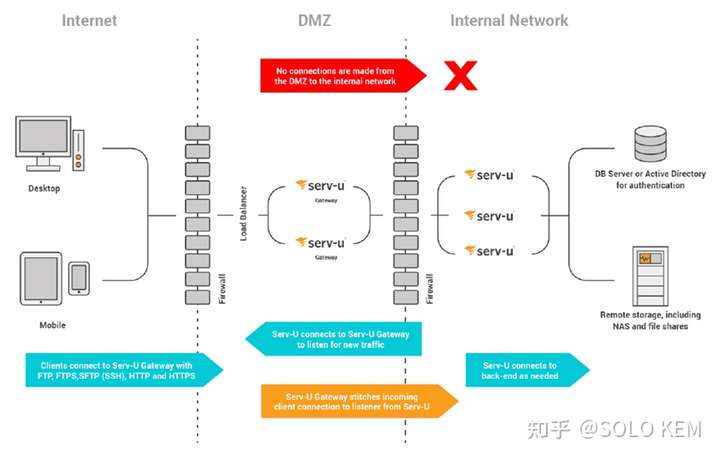
    Serv-U can be deployed as a web farm of application servers to provide highly available (“HA”) services through horizontal scaling (a.k.a. “N+1”). It can also be deployed in a multi-tier architecture that meets or exceeds most managed file transfer (“MFT”) security requirements. Together, this sophisticated architecture allows you to:

    • terminate all incoming transfer connections on a hardened server located in your DMZ segment
    • ensure no data is ever stored in your DMZ segment
    • avoid opening any inbound connections from your DMZ segment to the internal network
    • avoid single points of failure
    • scale up or down to meet actual demand

    Serv-U MFT Server is the only Serv-U edition that supports HA multi-tier deployments because Serv-U’s HA configuration requires the use of external authentication sources. Up to five Serv-U servers and three Serv-U Gateways are currently allowed in this configuration.

    Firewall Configuration

    The primary firewall supports FTP, FTPS (SSL/TLS), SFTP (SSH), HTTP, and/or HTTPS inbound connections from the Internet into Serv-U. This firewall can also be configured to allow outbound connections to support FTP/S active mode data connections, or may be “FTP aware” enough to open FTP data channels dynamically.

    The firewall between the DMZ segment and the internal network only needs to allow outbound connections from each of the Serv-U servers to each of the Serv-U Gateways over TCP port 1180.

    Load Balancer

    A network load balancer must be used to distribute incoming connections to each Serv-U Gateway.

    Load balancers should be configured to preserve original IP addresses if you want to use Serv-U’s IP lockout protection. Load balancers should also use “sticky sessions” that lock all incoming connections from a particular IP address to a specific Serv-U server to allow FTP and FTPS connections to work properly.

    No load balancer is required between the Serv-U Gateway tier and the Serv-U server tier.

    Remote Storage

    All user home folders, virtual folders and other Serv-U folders must be configured to use remote storage (for example, NAS or file shares) rather than local hard drives. Each Serv-U server must be able to make a CIFS (Windows networking) connection to those resources.

    Remote Authentication

    All Serv-U domains must use remote authentication provided by an ODBC-compliant database or Microsoft Active

    Directory (AD).

    • If Serv-U accesses an ODBC-compliant database for remote authentication, then each Serv-U server must be able to make a database-appropriate connection to that database. For example, SQL Server connections are often made over TCP port 1433.
    • If Serv-U accesses Active Directory (“AD”) for remote authentication, then your Serv-U server must be part of the AD domain and must be on the same network segment.

    Variations

    • On Windows Server the built-in Windows Network Load Balancer service can be used instead of a physical load balancer to provide load balancing services to Serv-U Gateway.
    • The two firewalls represented in the diagram are sometimes “two legs” of a single firewall controlling access between multiple segments.
    • Serv-U Gateway and Serv-U may be deployed on different operating systems. For example, your Internet-facing Serv-U Gateway can be deployed on Linux even if you have deployed your Serv-U server on Windows. However, all Serv-U Gateways should use the same operating system and all Serv-U Servers should use the same operating system whenever possible.

    Advantages

    • Active redundancy means that your Serv-U application servers are not single points of failure.
    • Fully satisfies the MFT requirement that no data at rest exists in the DMZ.
    • Satisfies most security policy requirements by ensuring that direct connections to internal storage, internal databases, or Active Directory domain controllers are only made between computers on your trusted internal network.
    • No CIFS, AD, or DB connections are ever made across a firewall.

    Disadvantages

    • More difficult to set up than single-node or single-tier systems. You must install Serv-U on each application server and point to the same shared resources. You must also configure a load balancer and configure ServU Gateways on both Serv-U servers.
    • Live user statistics may be unreliable for individual users who sign on to multiple servers simultaneously. This can be partially mitigated for end users who sign on from a single IP at a time by using “sticky sessions” on your load balancer.

    Gateway communication details

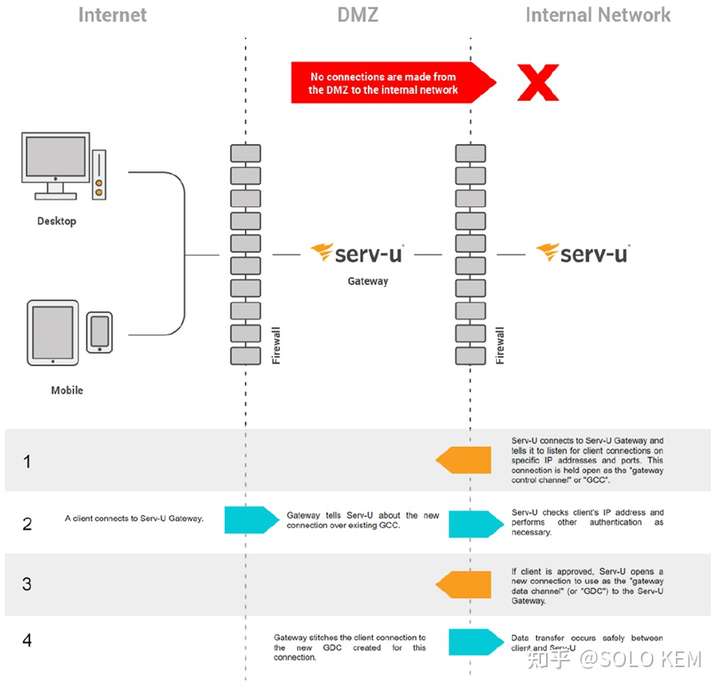
    Serv-U Gateway is able to act as a secure “reverse proxy” by avoiding direct connections from the Internet or the DMZ into the internal network. Behind the scenes, all inbound connections are served by Serv-U Gateway by tying them to outbound connections from the internally-based Serv-U server. This allows Serv-U Gateway to perform its duty without ever making an inbound connection from the DMZ segment to the trusted network.

    Assumptions

    • The firewall guarding access from the Internet to the DMZ segment is configured to allow standard file transfer services (for example, FTP/S, SFTP via SSH, HTTPS, and so on) to the Serv-U Gateway.
    • The firewall guarding access from the DMZ segment to the trusted internal network does not permit any connections from the DMZ to the internal network.
    • Serv-U Gateway is powered up and listening for connections in the DMZ segment.
    • Serv-U is installed in the trusted internal network.

    Communication Walkthrough

    1. When a Serv-U server starts up, it tries to connect to all its configured Serv-U Gateways. As it connects to each one, Serv-U provides specific instructions to each Serv-U Gateway about the protocols, IP addresses, and ports it should use to serve connections from the Internet. The connection Serv-U uses to provide this information is opened and reestablished as necessary so Serv-U Gateway can send messages back to Serv-U. This connection can be thought of as the “gateway control channel” or “GCC.”

    2. When a file transfer client (for example, web browser, iPad, or FTP client) opens a connection to the Serv-U Gateway, the Serv-U Gateway will ask about the connection over the existing GCC. Serv-U performs any necessary IP checks and authentication against its own database or internal resources.

    3. If Serv-U approves the incoming connection, Serv-U makes a new outbound connection from Serv-U to the Serv-U Gateway. This second connection can be thought of as the “gateway data channel” or “GDC.” If Serv-U denies the incoming connection Serv-U tells the Serv-U Gateway to deny the connection via the GCC and the Serv-U Gateway terminates the requesting client’s connection.

    4. Serv-U Gateway stitches the original client connection and the GDC created for the approved connection together. From that point forward data transfer occurs between the client and Serv-U until either side terminates the session.

    Security

    • Use of protocols that encrypt data in transit (for example, FTPS, SFTP over SSH and HTTPS) is supported and encouraged when clients connect to Serv-U Gateway.
    • The communication channels between Serv-U and Serv-U Gateway only encrypt traffic between the two systems if the client uses an encrypted protocol to connect. For end-to-end secure transport, it is recommended that the client should connect using an encrypted protocol.
    • No data or authentication information is ever stored at rest in the DMZ.

    Additional references

    The Serv-U Administrator Guide describes how to set up domains, groups, user, and folders to support a Serv-U HA deployment. The following sections are particularly pertinent:

    • Mapping home folders and virtual folders to Windows Shares

    o Virtual Paths – Physical Path

    o User Information – Home Directory

    o Directory Access Rules – Access as Windows Users

    • Using a common share to handle SSH keys, SSL certificates, server welcome message, FTP message files, event command executables, and log files

    o User Information – SSH Public Key Path

    o Encryption – Configuring SSL for FTPS and HTTPS

    o Encryption – SFTP (Secure File Transfer over SSH2)

    o FTP Settings – Server Welcome Message sub

    o FTP Settings – Message Files

    o Serv-U Events – Execute Command Actions

    o Configuring Domain Logs – Log File Path

    • Using external authentication

    o Domain Settings to set database-based or Active Directory authentication

    o Serv-U Database Integration Guide for database-based authentication

    o Serv-U Windows Groups for Active Directory authentication

    The Serv-U Database Integration Guide contains detailed information and instructions to set up an authentication database in support of Serv-U web farms. Supported databases include SQL Server, Oracle Database, MySQL, PostgreSQL, and several other ODBC-compliant relational databases.

  • Serv-U 分布式体系结构指南-中文版

    Serv-U 分布式体系结构指南-中文版

    在网上随便搜,几乎没有关于Serv-U HA高可用、Serv-U Gateway设置的相关文章,只能去官网找,只找到一个Serv-U_Distributed_Architecture_Guide的PDF文件,全英文,且加密。本着互联网的共享精神,我费了点周折,先把内容复制了出来,然后又做了一遍汉化,希望能帮助到需要的朋友。内容可能会存在一些瑕疵讹误,如果有发现的话可以联系我,我来改正。

    参考:https://documentation.solarwinds.com/en/success_center/servu/content/servu_documentation.htm

    介绍

    Serv-U是一款用于Windows和Linux的高性能安全文件传输服务端。它支持FTP,FTPS(SSL / TLS),SFTP(SSH),HTTP和HTTPS连接,并包括针对Web浏览器和移动设备(例如iPad,iPhone,BlackBerry,Android,Microsoft Windows Mobile和Kindle Fire)的优化界面。

    为了支持严格的冗余、安全性和性能要求,Serv-U 同时支持多层和高可用性架构。本文档介绍了 Serv-U 对这些分布式架构的支持及其优势和劣势。

    文件管理传输的“DMZ中没有数据”

    多层Serv-U/Serv-U Gateway部署可以您满足常见的文件管理传输要求:“切勿在DMZ中存储静态数据”。

    Serv-U Gateway安全地代理从互联网到您的Serv-U服务器的传入连接,而无需打开从互联网或DMZ网段到您受信任网络的任何连接。

    Serv-U 的File Sharing功能当前不支持高可用性环境,高可用性专为文件传输而设计。

    通过水平扩展实现高可用性

    核心的Serv-U服务器和Serv-U Gateway都可以以“N+1”的配置进行部署, 从而通过横向扩展实现高可用性,实现避免单点故障或纵向扩展扩大规模以满足您的需求。

    硬件要求

    本节包含需要满足的最低硬件要求,以便可以通过不同的协议处理给定数量的同时传输。

    所提供的数据是指单实例Serv-U的安装。例如,单实例安装可以使用给定硬件通过 FTP 同时处理 500 次传输。如果您希望同时进行1000次传输,建议您安装2个Serv-U实例,每个实例都满足处理500个同时传输的要求。

    如果给定配置的负载高于预期,Serv-U 仍可正常工作,但传输速率将降低,并且用户界面的响应速度会降低。

    每协议同时传输次数FTP (未压缩**),HTTP已加密(HTTPS,SFTP)
    10内存:512MB
    硬盘:7200 RPM
    CPU*:2核
    内存:1GB
    硬盘:7200 RPM

    CPU*:4核
    25内存:1GB
    硬盘:7200 RPM

    CPU*:2核
    内存:2GB
    硬盘:7200 RPM

    CPU*:4核
    50内存:2 GB
    硬盘:10000
    RPM
    CPU*:4核
    内存:4GB
    硬盘:10000
    RPM
    CPU:4+核*
    100内存:4 GB
    硬盘:2 个 10000 RPM(RAID)
    CPU*:4核
    Serv-U 的多个实例 (2x)
    200内存:4+ GB
    硬盘:固态硬盘或 2 个 10000 RPM
    CPU*:4+核
    多个 Serv-U 实例
    (4x)
    500内存:8+GB
    硬盘:固态硬盘或 2 个 15000(RAID)
    CPU*:8+核
    请联系
    SolarWinds 以定义您的环境要求。
    1000Serv-U 的多个实例 (2x)请联系
    SolarWinds 以定义您的环境要求。

    * 与增加 CPU 内核数相比,使用每内核性能更高的 CPU 对性能的影响明显更大 ,因此建议您使用主频较高的 CPU。

    ** 这些建议适用于禁用了数据压缩的FTP传输。如果启用了数据压缩,则CPU要求会明显更高。为获得最佳效果,建议使用每个内核具有尽可能高性能的 CPU。

    可伸缩性提示和最佳实践

    一个Serv-U Gateway能够正常处理至少2个Serv-U服务器实例。

    在管理控制台中打开用户列表是一项高度占用CPU的操作。为了获得更好的性能,建议您将用户划分为多个集合,并避免在负载过重时管理用户列表。

    还建议您避免在高负载期间打开及浏览管理控制台,尤其是在显示日志且间隔较短的页面上。

    为获得最佳性能,请使用具有高IOPS速率的HDD或SSD。高IOPS速率可提高50 次以上同时传输的性能。

    对于所有类型的文件传输,建议的网络速度为1000+ Mbit/s。

    基本部署

    当Serv-U部署为独立服务器时,它通常由单个防火墙保护免受Internet的影响。 它可以连接到远程存储或远程身份验证源。

    所有版本的 Serv-U 都可以部署在此体系结构中,但只有Serv-U MFT 版本可以使用外部身份验证源,例如AD或数据库。

    防火墙配置

    主防火墙支持FTP、FTPS (SSL/TLS)、SFTP (SSH)、HTTP 和/或 HTTPS 从互联网到Serv-U的入站连接。此防火墙还可以配置为允许出站连接以支持FTP/S 主动模式数据连接,或者可以开启“FTP aware(感知)”功能动态打开 FTP 数据通道。

    变化

    如果Serv-U访问远程存储(例如,NAS 或文件共享),则 Serv-U 必须能够与这些资源建立CIFS(Windows 网络)连接。

    如果Serv-U访问符合ODBC的数据库进行远程身份验证,则Serv-U必须能够与该数据库建立适合数据库的连接。例如,SQL Server 连接通常是通过TCP端口1433建立连接。

    如果Serv-U通过活动目录Active Directory (“AD”) 进行远程身份验证,则您的Serv-U服务器必须是AD域的一部分,并且必须位于同一网段上。

    优势

    设置最简单的配置(在对 Serv-U 软件进行功能评估期间,建议使用此配置)。

    劣势

    没有活动冗余,存在 Serv-U 服务器单点故障风险。

    许多行业安全策略都不允许从 Serv-U 到内部存储、内部数据库或 Active Directory 域控制器的直接连接。

    基本多层 (MFT) 部署

    通过Serv-U Gateway,您可以将Serv-U部署在一个多层架构中,满足或超过大多数文件管理传输 (“MFT”) 的安全要求,此体系结构允许您:

    • 终止位于DMZ网段中的加固服务器上的所有传入传输连接
    • 确保在您的DMZ网段中不会存储任何数据
    • 避免打开从DMZ网段到内部网络的任何入站连接

    Serv-U FTP Server* 和 Serv-U MFT Server 均可以部署在此体系结构中,但如果您需要 SFTP (SSH)或HTTPS传输或使用外部的身份验证源,则只能使用 Serv-U MFT 版本。

    * Serv-U FTP Server 不支持 SFTP 或 HTTPS。

    防火墙配置

    互联网和 DMZ 网段之间的防火墙需支持FTP、FTPS (SSL/TLS)、SFTP (SSH)、HTTP 和/或 HTTPS 从互联网到 Serv-U 的入站连接。此防火墙还需配置为允许出站连接支持 FTP/S主动模式数据连接,或者可以开启“FTP aware(感知)”功能动态打开 FTP 数据通道。

    DMZ 网段和内部网络之间的防火墙只需要允许通过 TCP 端口 1180 从 Serv-U 到 Serv-U Gateway的出站连接。

    变化

    • 如果Serv-U 访问远程存储(例如,NAS 或文件共享),那 Serv-U 必须能够与这些资源建立 CIFS(Windows 网络)连接。
    • 如果Serv-U访问符合ODBC的数据库进行远程身份验证,则Serv-U必须能够与该数据库建立适合数据库的连接。例如,SQL Server 连接通常是通过TCP端口1433建立连接。
    • 如果Serv-U通过活动目录Active Directory (“AD”) 进行远程身份验证,则您的Serv-U服务器必须是AD域的一部分,并且必须位于同一网段上。
    • 图中所示的两个防火墙实际上通常是单个防火墙的“两条腿”,用于控制多个网段之间的访问。
    • Serv-U Gateway和Serv-U可以部署在不同的操作系统上,例如,即使您已经在 Windows上部署了Serv-U服务器,面向 Internet的Serv-U Gateway也可以部署在 Linux 上。

    优势

    • 仍然易于设置(安装 Serv-U Gateway,定义 Serv-U Gateway,定义 Serv-U 监听器,然后开始。)
    • 完全满足文件管理传输要求,即DMZ中不存在任何静态数据。
    • 通过确保仅在受信任的内部网络上的计算机之间建立与内部存储、内部数据库或 Active Directory 域控制器的直接连接,满足大多数安全策略要求。
    • 任何 CIFS、AD 或 DB 连接都不会通过防火墙。

    劣势

    无主动冗余,意味着 Serv-U 服务器和 Serv-U Gateway存在单点故障的隐患。

    基本高可用性 (N+1) 部署

    Serv-U可以部署为应用程序服务器的Web场,通过横向扩展(也称为“N+1”)提供高可用性 (“HA”) 服务。

    Serv-U MFT 是唯一支持 HA 部署的 Serv-U 版本,因为Serv-U的HA配置需要使用外部身份验证源,此配置中目前(2022年2月)最多允许使用五台Serv-U实例服务器。

    防火墙配置

    主防火墙支持 FTP、FTPS (SSL/TLS)、SFTP (SSH)、HTTP 和/或 HTTPS 从 互联网到 Serv-U 的入站连接。此防火墙还需要配置为允许出站连接支持 FTP/S 主动模式数据连接,或者可以开启“FTP aware(感知)”功能动态打开 FTP 数据通道。

    负载均衡器

    必须使用网络负载均衡设备将传入连接分发到每台Serv-U服务器上。

    如果要使用Serv-U的IP锁定保护,则应将负载均衡器配置为保留原始IP地址。负载均衡器还应使用“sticky sessions(粘性会话)”,将来自特定IP地址的所有传入连接锁定到特定的Serv-U服务器上,从而确保FTP和FTPS连接正常工作。

    远程存储

    所有用户的主文件夹、虚拟文件夹和其他 Serv-U 文件夹都必须配置为使用远程存储( 例如,NAS或文件共享)而不是本地硬盘驱动器,Serv-U 必须能够与这些资源建立CIFS(Windows 网络)连接。

    远程身份验证

    所有Serv-U域都必须使用由符合 ODBC 的数据库或 Microsoft Active Directory (AD) 所提供的远程身份验证。

    如果Serv-U访问符合 ODBC 的数据库进行远程身份验证,则 Serv-U 必须能够与该数据库建立适合数据库的连接。例如,SQL Server 连接通常是 通过 TCP 端口 1433 建立的。

    如果 Serv-U 访问 Active Directory (“AD”) 进行远程身份验证,则您的 Serv-U 服务器必须是 AD 域的一部分 ,并且必须位于同一网段上。

    变化

    在 Windows Server 上,可以使用内置的 Windows Network Load Balancer 服务来代替负载均衡的物理设备。

    优势

    主动冗余,消除了 Serv-U 应用程序服务器单点故障隐患。

    劣势

    比单实例系统更难设置,必须在每个应用程序服务器上安装Serv-U,并指向相同的共享资源。

    许多行业安全策略都不允许从Serv-U到内部存储、内部数据库或Active Directory的直接连接。

    对于同时登录到多个服务器的个人用户来说,实时用户统计信息可能是不可靠的。对于那些通过负载均衡上的“sticky sessions(粘性会话)”从单个 IP 登录的终端用户来说,这一点可以部分缓解,而不是群组统计信息。

    标准高可用的多层 (MFT) 部署

    Serv-U 可以部署为应用程序服务器的Web场,通过横向扩展(也称为“N+1”)提供高可用性 (“HA”) 服务。可以部署在满足或超过大多数文件管理传输安全要求的多层体系结构中。总之,这种复杂的架构使您能够:

    终止位于 DMZ 网段中的加固服务器上的所有传入传输连接

    确保在您的 DMZ 网段中不会存储任何数据

    避免打开从 DMZ 网段到内部网络的任何入站连接

    避免单点故障

    扩大或缩小规模以满足实际需求

    Serv-U MFT 是唯一支持HA多层部署的Serv-U版本,因为Serv-U的HA配置需要使用外部身份验证源。此配置中最多允许五个Serv-U实例服务器和三个Serv-U Gateway。

    防火墙配置

    主防火墙支持 FTP、FTPS (SSL/TLS)、SFTP (SSH)、HTTP 和/或 HTTPS从互联网到Serv-U的入站连接。此防火墙还可以配置为允许出站连接支持FTP/S主动模式数据连接,或者可以具有足够的“FTP aware(感知)”以动态打开FTP数据通道。

    DMZ网段和内部网络之间的防火墙只需要允许从每个Serv-U服务器到每个Serv-U Gateway的TCP端口1180的出站连接。

    负载均衡器

    必须使用负载均衡设备将传入连接分发到每个Serv-U Gateway上。

    如果要使用Serv-U的IP锁定保护,则应将负载均衡器配置为保留原始IP地址。负载均衡器还应使用“sticky sessions(粘性会话)”,将来自特定IP地址的所有传入连接锁定到特定的Serv-U服务器上,从而确保FTP和FTPS连接正常工作。

    在 Serv-U Gateway层和 Serv-U 服务器层之间不需要负载均衡。

    远程存储

    所有用户的主文件夹、虚拟文件夹和其他 Serv-U 文件夹都必须配置为使用远程存储( 例如,NAS或文件共享)而不是本地硬盘驱动器,Serv-U 必须能够与这些资源建立CIFS(Windows 网络)连接。

    远程身份验证

    所有Serv-U域都必须使用由符合 ODBC 的数据库或 Microsoft Active Directory (AD) 所提供的远程身份验证。

    如果Serv-U访问符合 ODBC 的数据库进行远程身份验证,则 Serv-U 必须能够与该数据库建立适合数据库的连接。例如,SQL Server 连接通常是 通过 TCP 端口 1433 建立的。

    如果 Serv-U 访问 Active Directory (“AD”) 进行远程身份验证,则您的 Serv-U 服务器必须是 AD 域的一部分 ,并且必须位于同一网段上。

    变化

    在 Windows Server 上,可以使用内置的 Windows Network Load Balancer 服务代替负载均衡的物理设备来为Serv-U Gateway提供负载均衡服务。

    图中所示的两个防火墙实际上通常是单个防火墙的“两条腿”,用于控制多个网段之间的访问。

    Serv-U Gateway和Serv-U可以部署在不同的操作系统上。例如,即使您已经在 Windows 上部署了Serv-U服务器,也可以在Linux上部署面向Internet的Serv-U Gateway。但是,所有Serv-U Gateway都应使用相同的操作系统,并且所有Serv-U 服务器应尽可能使用相同的操作系统。

    优势

    • 主动冗余,消除了 Serv-U 应用程序服务器单点故障隐患。
    • 完全满足 MFT 要求,即 DMZ 中不存在任何静态数据。
    • 通过确保仅在受信任的内部网络上的计算机之间建立与内部存储、内部数据库或 Active Directory域控制器的直接连接,满足大多数行业安全策略要求。
    • 任何CIFS、AD或DB连接都不会跨越防火墙。

    劣势

    比单节点或单层系统更难设置。必须在每个应用程序服务器上安装Serv-U,并指向相同的共享资源。您还必须部署一台负载均衡设备,并在两台Serv-U服务器上配置Serv-U Gateway。

    对于同时登录到多个服务器的个人用户来说,实时用户统计信息可能是不可靠的。对于每次从单个 IP 登录的终端用户,可以通过负载均衡上的“sticky sessions(粘性会话)”来部分缓解此问题。

    Gateway通信详详情

    Serv-U Gateway能够作为一个安全的“反向代理”,避免从互联网或DMZ直接连接到内部网络。在后台,所有入站连接都由 Serv-U Gateway提供服务,方法是将它们绑定到来自基于内部的 Serv-U 服务器的出站连接,Serv-U Gateway才能够履行其职责,而无需从 DMZ 网段到受信任网络建立入站连接。

    假设

    防火墙保护从 Internet 到 DMZ 网段的访问配置为允许标准文件传输服务(例如,FTP/S、SFTP via SSH、HTTPS 等)到 Serv-U Gateway。

    防火墙保护从 DMZ 网段到受信任的内部网络的访问,不允许 从 DMZ 到内部网络的任何连接。

    Serv-U Gateway已启动,并侦听 DMZ 网段中的连接。

    Serv-U 安装在受信任的内部网络中。

    通信演练

    1. 当Serv-U服务器启动时,它会尝试连接到其所有已配置的Serv-U Gateway。当Serv-U连接到每个Gateway时,它向每个Serv-U Gateway提供有关它应用于从Internet提供连接的协议、IP地址和端口的特定指令。根据需要打开并重新建立Serv-U用于提供此信息的连接 ,以便Serv-U Gateway可以将消息发送回Serv-U,这种连接称为“Gateway Control Channel控制通道”或“GCC”。

    2. 当文件传输客户端(例如,Web浏览器、iPad 或FTP客户端)打开与 Serv-U Gateway的连接时 ,Serv-U Gateway将询问通过现有GCC的连接。Serv-U对其自己的数据库或内部资源执行任何必要的 IP 检查和身份验证。

    3. 如果Serv-U批准传入连接,Serv-U将建立从Serv-U到Serv-U Gateway的新出站连接。第二个连接可以被认为是“Gateway Data Channel数据通道”或“GDC”。如果 Serv-U 拒绝传入连接,Serv-U 会告诉 Serv-U Gateway拒绝通过 GCC 的连接, Serv-U Gateway会终止请求客户端的连接。

    4. Serv-U Gateway将原始客户端连接和为批准的连接创建的 GDC 拼接在一起。从那时起,客户端和Serv-U之间将进行数据传输,直到任何一方终止会话。

    安全

    当客户端连接到Serv-U Gateway时,建议使用加密传输中数据的协议(例如,通过SSH和HTTPS的FTPS、SFTP)。

    如果客户端使用加密协议进行连接,则Serv-U和Serv-U Gateway之间的通信信道仅 对两个系统之间的流量进行加密。对于端到端的安全传输,建议客户端应使用加密协议进行连接。

    l DMZ 中不会存储任何静态数据或身份验证信息。

    其他参考资料

    《Serv-U 管理员指南》介绍了如何设置域、组、用户和文件夹以支持 Serv-U HA 部署。以下为各节相关内容:

    将主文件夹和虚拟文件夹映射到 Windows 共享

    • 虚拟路径 – 物理路径
    • 用户信息 – 主目录
    • 目录访问规则 – 以 Windows 用户身份访问

    使用公用共享处理 SSH 密钥、SSL 证书、服务器欢迎消息、FTP 消息文件、 事件命令可执行文件和日志文件

    • 用户信息 – SSH 公钥路径
    • 加密 – 为 FTPS 和 HTTPS 配置 SSL
    • 加密 – SFTP(通过 SSH2 进行安全文件传输)
    • FTP 设置 – 服务器欢迎消息
    • FTP 设置 – 消息文件
    • Serv-U 事件 – 执行命令操作
    • 配置域日志 – 日志文件路径

    使用外部身份验证

    • 域设置,用于设置基于数据库的身份验证或活动目录身份验证
    • 用于基于数据库的身份验证的 Serv-U 数据库集成指南
    • 基于 Active Directory 身份验证的 Serv-U Windows Groups

    Serv-U 数据库集成指南包含有关设置身份验证 数据库以支持 Serv-U Web 场的详细信息和说明。支持的数据库包括 SQL Server、Oracle Database、MySQL、PostgreSQL 和其他几个符合 ODBC 的关系数据库。

  • Serv-U与AD整合,使用LDAP验证方式登录

    Serv-U与AD整合,使用LDAP验证方式登录

    在开始之前,需理解Serv-U里的域与Windows的AD域是两个完全不同的东西。Serv-U里的域,可以理解成是域名,就像搭建一个HTTP\HTTPS的网站一样需要有一个域名,而FTP的站点也是同理,也需要一个域名,这个域名就是Serv-U的域;Windows的AD域就不用解释了,企业中常见的活动目录。

    下面开始正题:

    注意:Serv-U服务器加入域,不是使用LDAP验证的必要条件。

    单击Serv-U域中的用户,然后切换至LDAP验证选项卡,切记LDAP登录ID后缀位置留空,无需填写;勾选启用LDAP验证使用LDAP群组根目录而不是账户根目录,然后单击添加

    单击Serv-U域中的用户,然后切换至LDAP验证选项卡,切记LDAP登录ID后缀位置留空,无需填写,然后单击添加

    输入Windows AD域的LDAP信息,然后测试成功后,单击Show/Hide Advanced LDAP Options,显示高级选项:

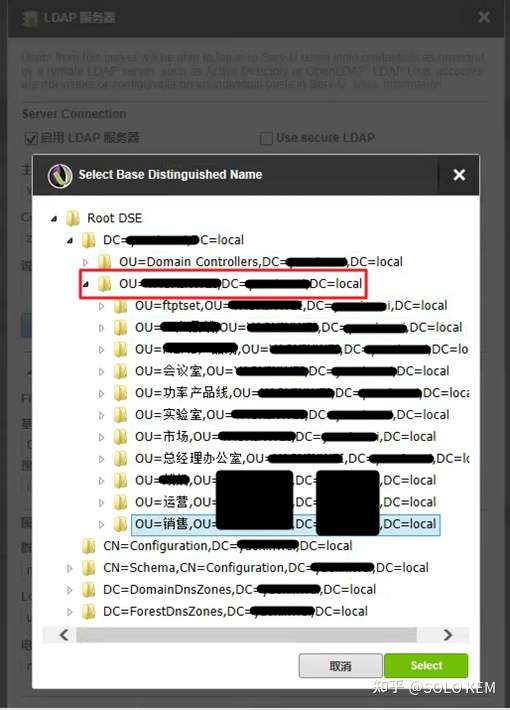
    单击基底识别名文本框右侧按钮,选中AD域中需要登陆Serv-U的域账号所在的OU即可,可以不用按照AD层级结构逐级添加

    剩下的其他信息例如搜索过滤器、属性映射等内容全部保持默认,完成之后,AD帐号就可以自由登录了。

    但是,凡是有集成AD需求的用户通常会有更加细致的要求,比如希望不同的OU可以访问各自的文件夹,这样就需要通过复制来添加刚才录入的LDAP验证,并在Show/Hide Advanced LDAP Options基底识别名中选择该部门的OU,如此往复,就像下图一样:

    然后开始为这些OU的域账号的权限设置做准备,在AD上鼠标移至OU上可列出详细DN。

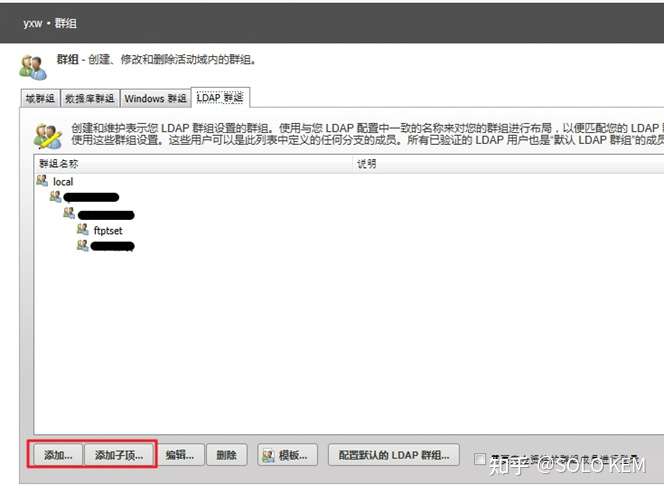
    前往群组,切换至LDAP群组选项卡,然后单击添加,此处需严格按照AD层级进行添加,先添加根,也就是下图最左侧的DC后的值:


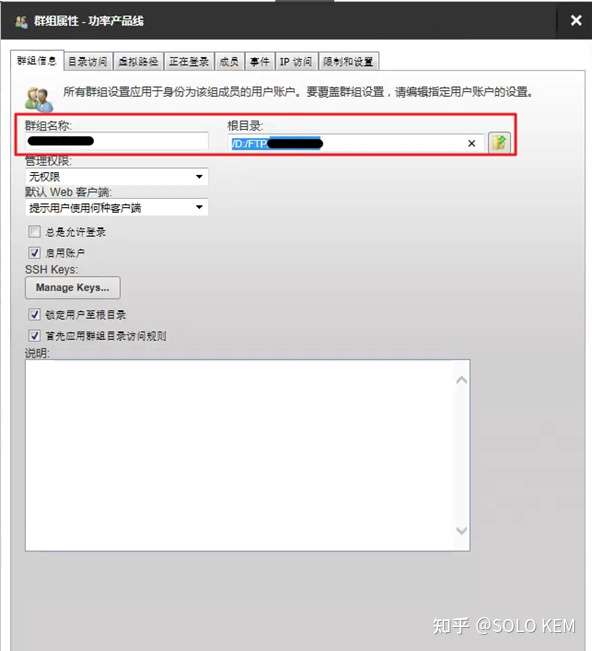
    群组名称输入com,根目录目录访问可以先不设置,保持默认逐级添加至最后一层OU,在最后一层的OU设置。

    此处sun帐户所在的OU为Beijing,故在Beijing群组属性中设置根目录。

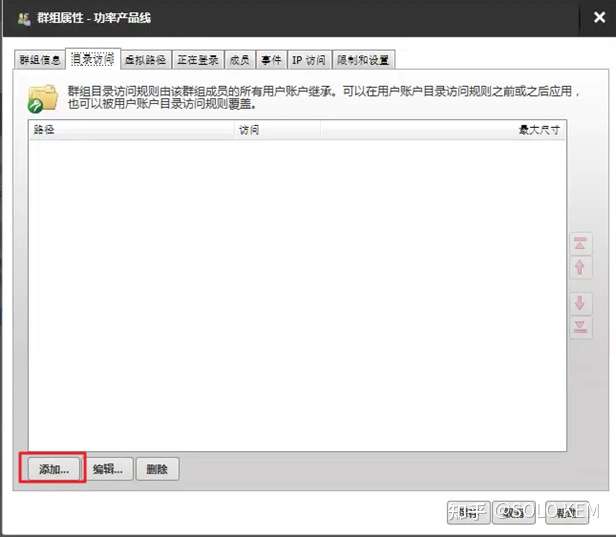
    然后切换至目录访问选项卡,单击添加:

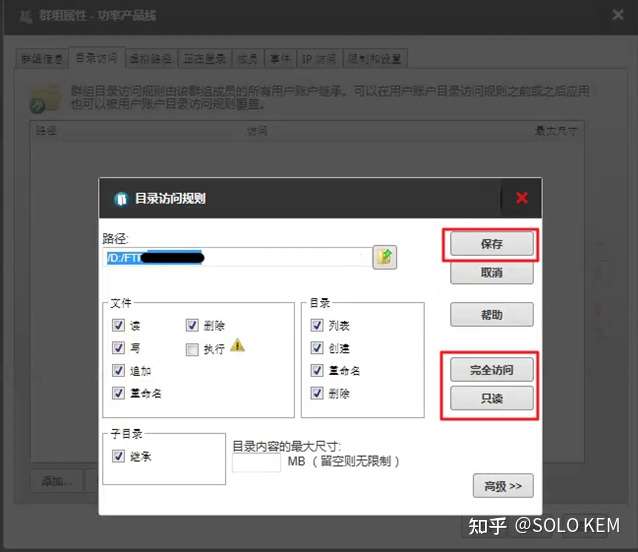
    根据要求,来选择是完全访问或者是只读,或者具体某个权限的取舍,然后单击保存

    然后重复以上步骤添加其他的LDAP群组群组名称需与OU名称保持一致(支持中文的OU),根目录选择提前创建好的其他OU的同名文件夹,并定义权限。

    至此,Serv-U与Windows AD的LDAP验证集成完成。

  • SolarWinds数据库完全优化手册

    SolarWinds数据库完全优化手册

    适用范围:SQL Server 2016及以上版本

    打开并登录SQL Server的SSMS,完成如下设置后重启数据库服务器

    最大服务器内存

    位置:右键单击数据库,单击属性

    位置:服务器属性内存最大服务器内存

    修改:至少设置为总内存的85%

    并行的开销阈值

    位置:服务器属性高级并行的开销阈值(Cost Threshold for Parallelism)

    修改:通常默认为5,建议设置为50

    Max DOP

    位置:右键单击SolarWinds的每一个数据库(SolarWindsOrion、SolarWindsOrionLog、SolarWindsFlowStorage),然后单击属性

    位置:数据库属性选项Max DOP(Max Degree Of Parallelism)

    修改:默认为0,改为4

    查询优化器修补程序

    位置:数据库属性选项查询优化器修补程序(Query Optimizer Fixes)

    修改:默认为关闭,改为打开

    参考原文

    出处:SolarWinds Web ConsoleSettingsMy Orion DeploymentDeployment Health

    Cost Threshold for Parallelism specifies when the SQL server creates and runs parallel plans for queries. The current value of Cost Threshold for Parallelism is ‘5’, consider using 50 and adjust as necessary. Max Degree Of Parallelism (MAXDOP) specifies the number of processors used to execute a query in a parallel plan. Use the number of physical cores in a single CPU socket. The current value of MAXDOP is ‘0’, the recommended value is ‘4’. Make sure the Query Optimizer Fixes setting is ‘ON’.